API Access
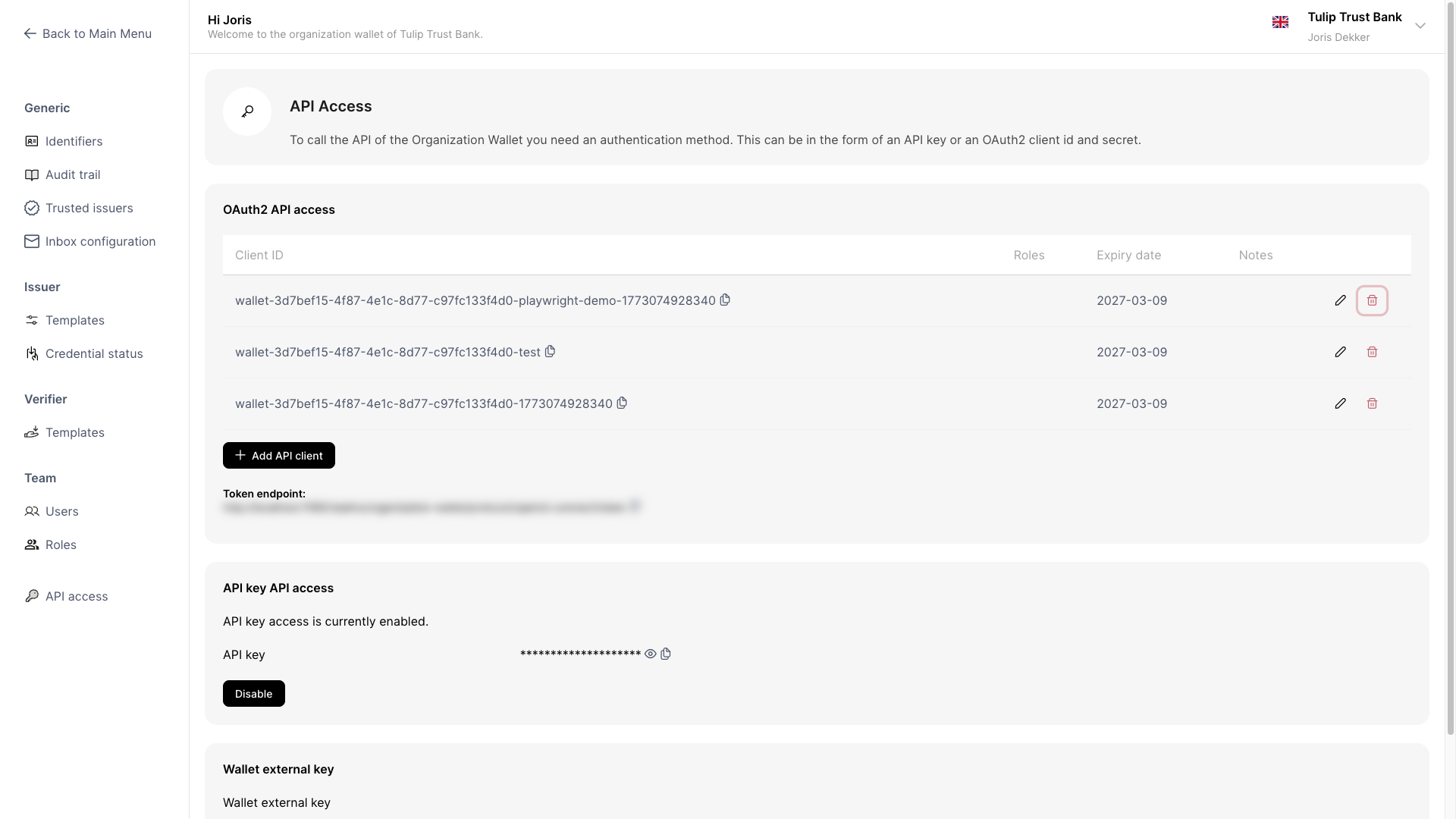
The API Access screen lets administrators configure OAuth client IDs that allow external systems to authenticate against your wallet using the OAuth 2.0 Client Credentials flow.
Each client ID has its own set of roles, an expiry date, and optional notes — so you can grant different integrating parties exactly the access they need, for as long as they need it.
What you can do
- Add a client ID to grant an external system access to your wallet
- Edit a client ID to update its roles or notes
- Delete a client ID to revoke access
Navigate to API Access
Go to Settings → IAM → API Access.
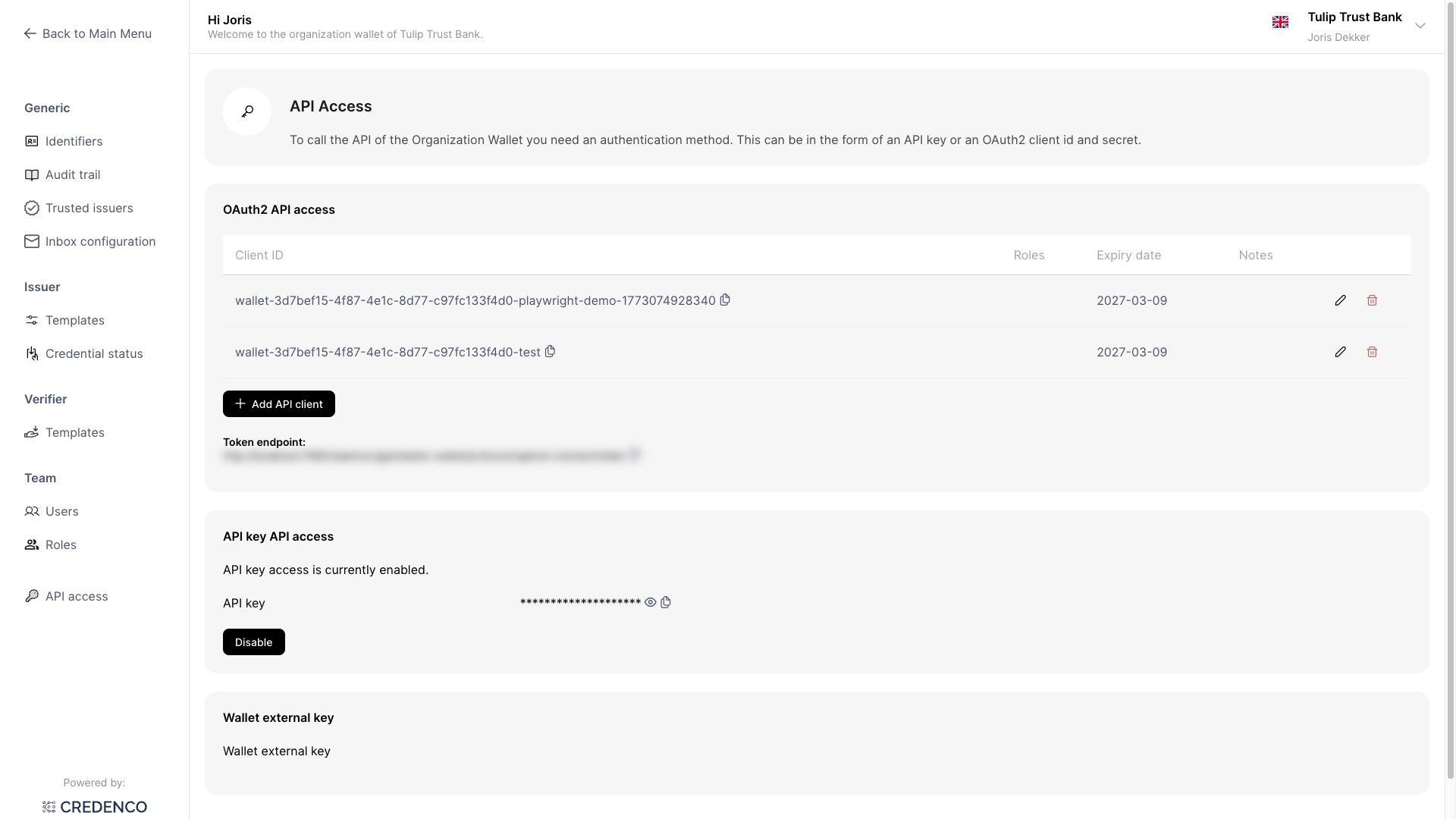
The table lists all configured client IDs. Each row shows:
| Column | Description |
|---|---|
| Client ID | The unique identifier used during OAuth authentication |
| Roles | The permissions assigned to this client |
| Expiry date | The date after which this client ID is rejected |
| Notes | Optional context about the integrating party |
Expired client IDs are visually greyed out and flagged with a warning icon.
You need the API Access (Read) permission to view this screen, and API Access (Change) to add, edit, or delete client IDs.
Add a client ID
Click Add API client.

The Add API client dialog opens.
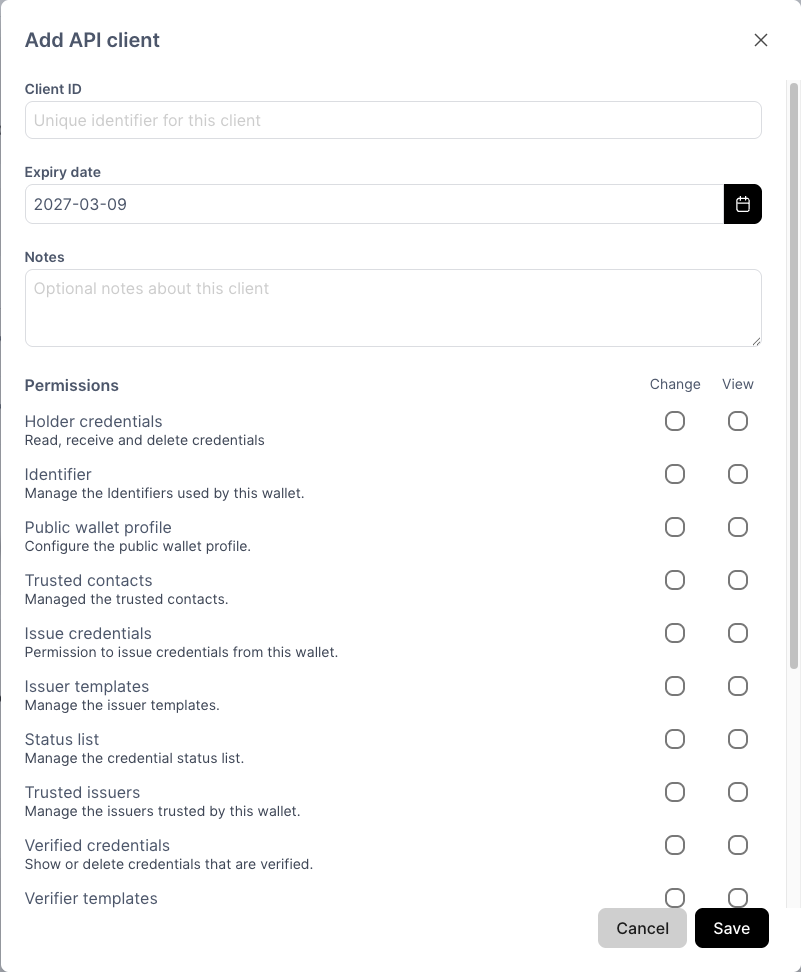
Fill in the fields:
Client ID (required)
A unique identifier for this client. Choose something meaningful, such as the name of the integrating party or its purpose (e.g. acme-backend or reporting-service). This value cannot be changed after creation.
Expiry date (required) The date on which this client ID expires. Defaults to one year from today. After the expiry date, the client can no longer obtain tokens.
Notes (optional) Free-text field to record context about the client, such as the integrating party's name, contact person, or purpose.
Permissions Select which roles to assign to this client using the permissions grid. Each row represents a resource:
- Change column — grants CRUD (create, read, update, delete) access and automatically selects View as well
- View column — grants read-only access; can be selected independently when Change is not selected
Click Save. A dialog appears showing the generated client secret.
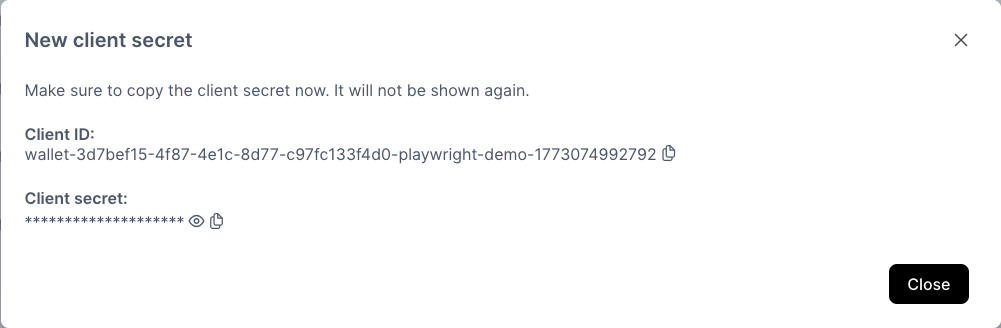
The client secret is only shown once. Store it securely — it cannot be retrieved afterwards.
The new client ID now appears in the list.
Edit a client ID
Click the pencil icon on any row to edit a client ID.
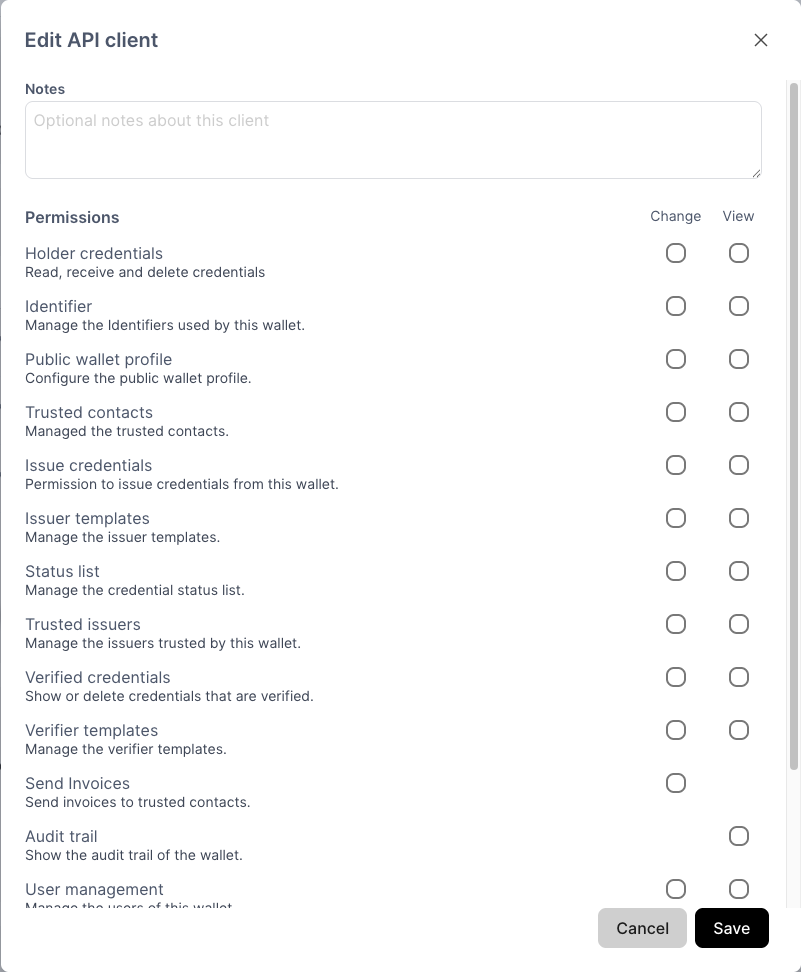
You can update the roles and notes. The client ID and expiry date cannot be changed.
Click Save to apply the changes.
Delete a client ID
Click the trash icon on any row. A confirmation dialog appears.

Click Yes to permanently revoke access for this client ID.
Authenticate using a client ID
Use the token endpoint shown at the bottom of the API Access screen to obtain an access token via the OAuth 2.0 Client Credentials flow.
Example request:
POST {token-endpoint}
Content-Type: application/x-www-form-urlencoded

grant_type=client_credentials
&client_id=wallet-{external-key}-{your-client-id}
&client_secret={your-client-secret}
The returned access_token can then be passed as a Bearer token in API requests to your wallet.