Send Password Reset Email
Wallet administrators can send a password reset email to any user directly from the user maintenance screen. The email contains a secure link that lets the user set a new password. This is useful when a user has forgotten their password or when an administrator wants to force a password change.
The email contains a time-limited link that allows the user to set a new password.
How do I help a user who forgot their password?
As a wallet administrator, you can send a password reset email to any user directly from their user form, without them needing to request it themselves. The email contains a time-limited, single-use link that lets the user set a new password, so they regain access without you ever seeing or handling their credentials.
- Send a password reset email to help a user regain access to their account
Navigate to the user form
- Open the left sidebar.
- Click Settings.
- Under Team, click Users.
- Click on the user you want to send a password reset email to.
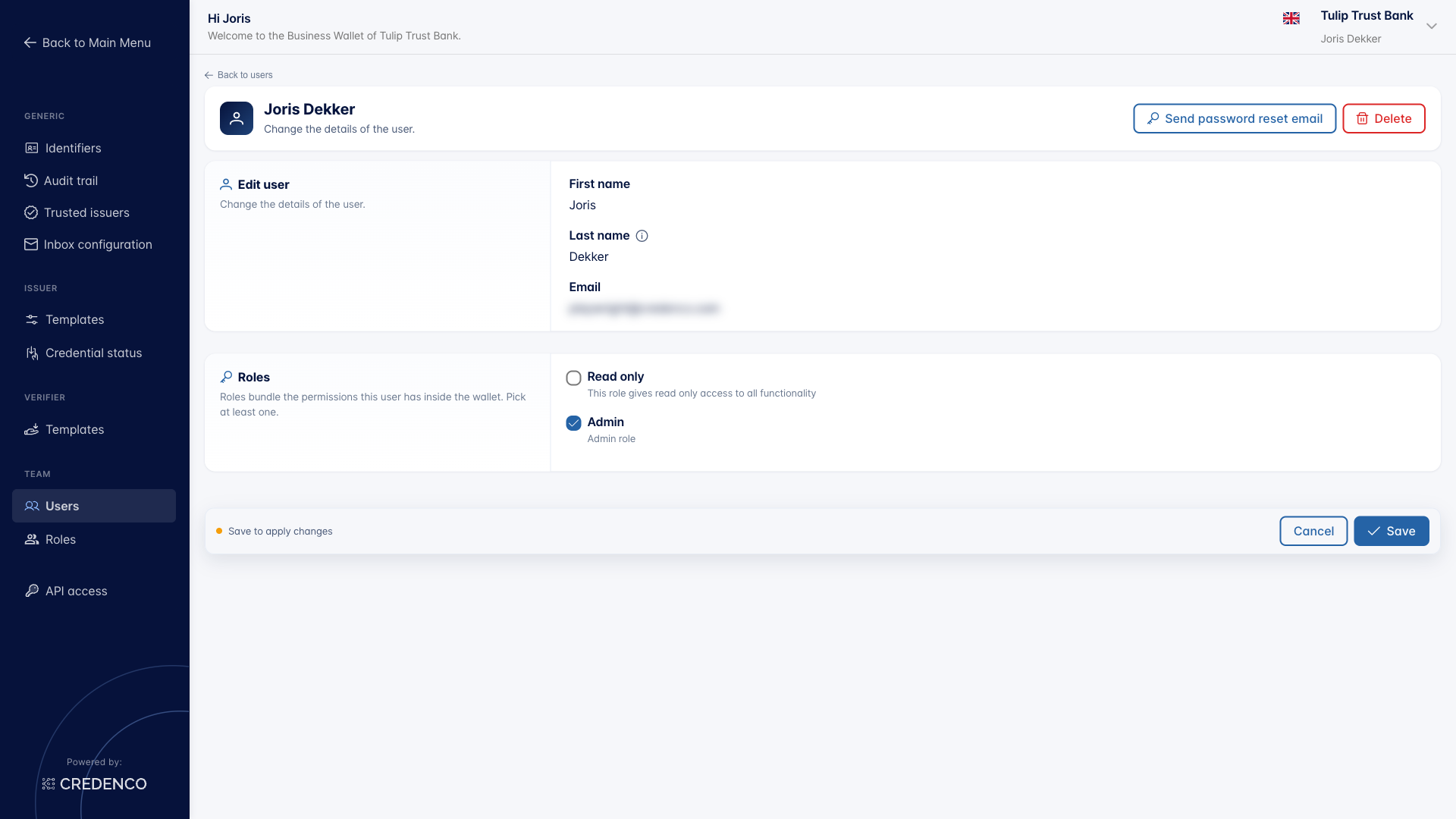
The user form opens in edit mode showing the user's first name, last name, email address, and assigned roles.
Send a password reset email
On the user form (edit mode), click the Send password reset email button.
A confirmation dialog appears asking you to confirm the action:
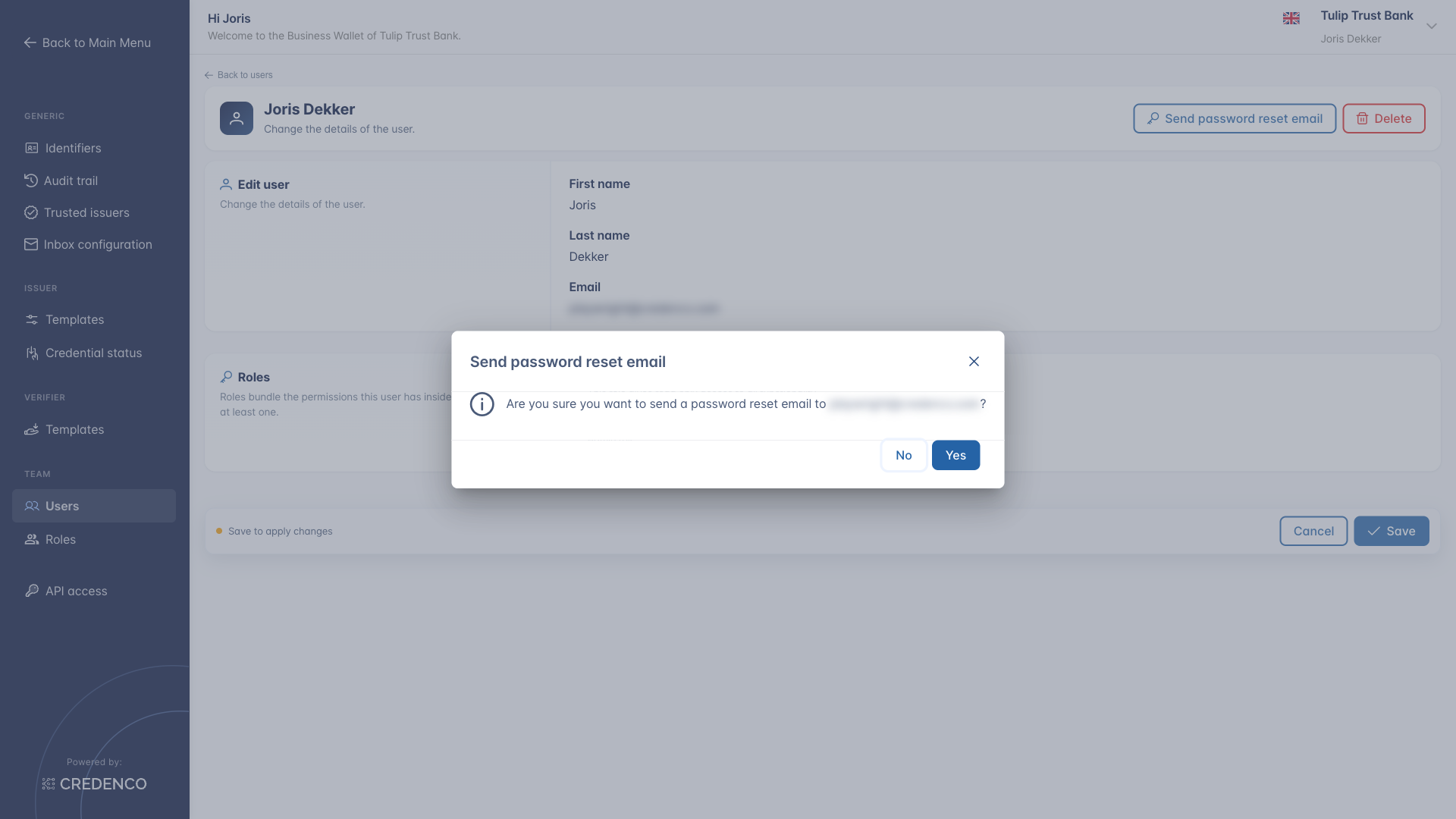
Click Yes to send the email. A success message appears confirming that the password reset email has been sent.
The user will receive an email with a link to set a new password. The link is time-limited and can only be used once.
You need the User Maintenance (Change) permission to see and use the Send password reset email button.